The Google Cloud Logging Data Source is a backend data source plugin for Grafana, which allows users to query and visualize their Google Cloud logs in Grafana.
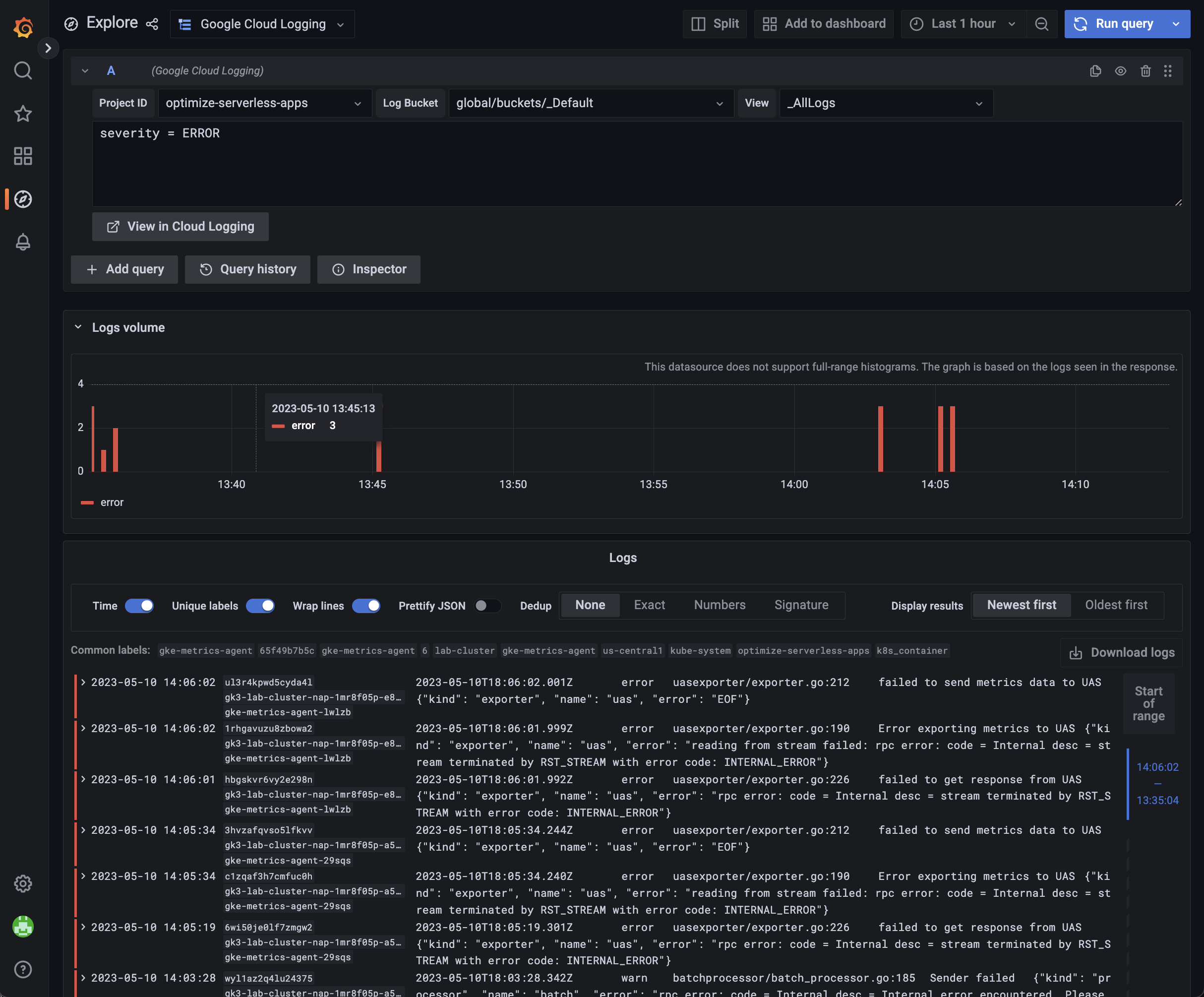
You need to enable the resource manager API. Otherwise, your cloud projects will not be displayed in the dropdown menu.
You can follow the steps to enable it:
- Navigate to the cloud resource manager API page in GCP and select your project
- Press the
Enablebutton
- If you don't have a GCP project, add a new GCP project here
- Open the Credentials page in the Google API Console
- Click Create Credentials then click Service account
- On the Create service account page, enter the Service account details
- Fill in the
Service account detailsand then clickCreate and Continue - On the
Grant this service account access to projectsection, add theLogs Viewerrole andLogs View Accessorrole underLoggingto the service account. ClickDone - In the next step, click the service account you just created. Under the
Keystab and selectAdd keyandCreate new key - Choose key type
JSONand clickCreate. A JSON key file will be created and downloaded to your computer
If you want to access logs in multiple cloud projects, you need to ensure the service account has permission to read logs from all of them.
If you host Grafana on a GCE VM, you can also use the Compute Engine service account. You need to make sure the service account has sufficient permissions to access the scopes and logs in all projects.
Similar to Prometheus data sources on Google Cloud, you can also configure a scheduled job to use an OAuth2 access token to view the logs. Please follow the steps in the data source syncer README to configure it.
You can also configure the plugin to use service account impersonation.
You need to ensure the service account used by this plugin has the iam.serviceAccounts.getAccessToken permission. This permission is in roles like the Service Account Token Creator role (roles/iam.serviceAccountTokenCreator). Also, the service account impersonated
by this plugin needs logging read and project list permissions.
You can configure the data source to use the OAuth token of the signed in user to authenticate to Google Cloud Logging. This requires a Grafana instance that is configured with Google authentication.
Once Grafana is configured with Google authentication for signing in, ensure that the scopes set in the Grafana configuration include: https://www.googleapis.com/auth/userinfo.profile, https://www.googleapis.com/auth/userinfo.email, and https://www.googleapis.com/auth/logging.read. The latter will allow the signed in user to read Google Cloud Logging data.
You can then configure the data source with the OAuth Passthrough authentication method. Ensure that you provide a default project ID otherwise the health-check will fail.
If you are using a Google Cloud environment that uses a custom universe domain (e.g., a sovereign or isolated cloud), you can configure the Universe Domain in the data source settings. This tells the plugin to use a different API endpoint instead of the default googleapis.com.
Leave this field empty to use the default googleapis.com domain.
- With Grafana restarted, navigate to
Configuration -> Data sources(or the route/datasources) - Click "Add data source"
- Select "Google Cloud Logging"
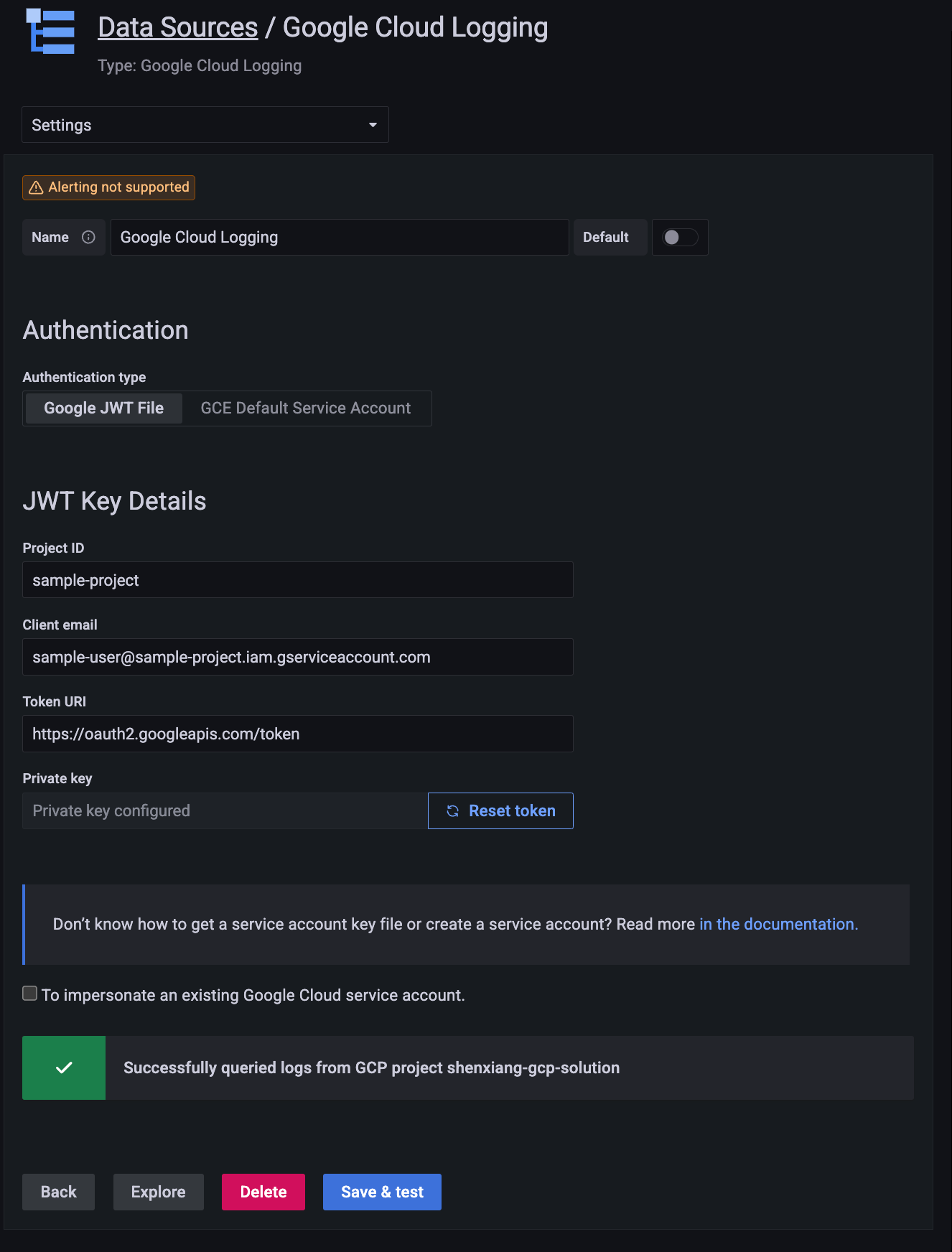
- Provide credentials from your JWT file, either by uploading it using the file selector or by pasting its contents directly into the designated field
- Optionally, configure the Universe Domain if you are using a non-default GCP environment
- Optionally, configure the Project List Filter to restrict which projects appear in the project dropdown (see Project List Filter below)
- Optionally, configure the Log Bucket Filter to include or exclude specific log buckets from the bucket dropdown (see Log Bucket Filter below)
- Click "Save & test" to test that logs can be queried from Cloud Logging
If you have access to many GCP projects, you can restrict which projects appear in the project dropdown by configuring a Project List Filter in the data source settings.
Enter project IDs or regex patterns in the text area, one per line. Only projects matching at least one pattern will appear in the dropdown. Leave the field empty to show all projects (the default behavior).
Each line is treated as a regular expression anchored to the full project ID. For example:
| Pattern | Matches |
|---|---|
my-project-123 |
Only the exact project my-project-123 |
team-alpha-.* |
All projects starting with team-alpha- |
prod-.*-logging |
Projects like prod-us-logging, prod-eu-logging, etc. |
You can combine multiple patterns (one per line) to match the union of all patterns. If a pattern contains invalid regex syntax, it is treated as a literal string match.
You can control which log buckets appear in the bucket dropdown by configuring a Log Bucket Filter in the data source settings. This supports both include and exclude patterns, which is especially useful for excluding default system buckets from initiative projects.
Enter patterns in the text area, one per line:
- Include patterns (no prefix): Only buckets matching at least one include pattern are shown.
- Exclude patterns (prefixed with
!): Buckets matching any exclude pattern are removed.
When both include and exclude patterns are present, include patterns are applied first, then exclude patterns remove from the result. Leave the field empty to show all buckets (the default behavior).
Patterns are regular expressions anchored to the full bucket path as returned by the API (e.g., global/buckets/_Default or locations/us-central1/buckets/my-bucket).
| Pattern | Effect |
|---|---|
!.*/_Default |
Exclude all _Default buckets across all locations |
!.*/_Default!.*/_Required |
Exclude both _Default and _Required buckets |
.*my-app-logs |
Include only buckets ending with my-app-logs |
global/buckets/.*!.*/_Default |
Include only global/buckets/* buckets, but exclude _Default |
If a pattern contains invalid regex syntax, it is treated as a literal string match.
After the plugin is installed, you can define and configure the data source in YAML files as part of Grafana's provisioning system, similar to the Google Cloud Monitoring plugin. For more information about provisioning, and for available configuration options, refer to Provisioning Grafana.
The following YAML is an example.
apiVersion: 1

datasources:
  - name: Google Cloud Logging
    type: googlecloud-logging-datasource
    access: proxy
    jsonData:
      authenticationType: gce
      # Optional: restrict the project dropdown to matching projects (regex supported)
      # projectListFilter: |
      #   my-project-123
      #   team-alpha-.*
      # Optional: filter log buckets (prefix with ! to exclude)
      # logBucketFilter: |
      #   !.*/_Default
      # Optional: custom universe domain for sovereign cloud environments
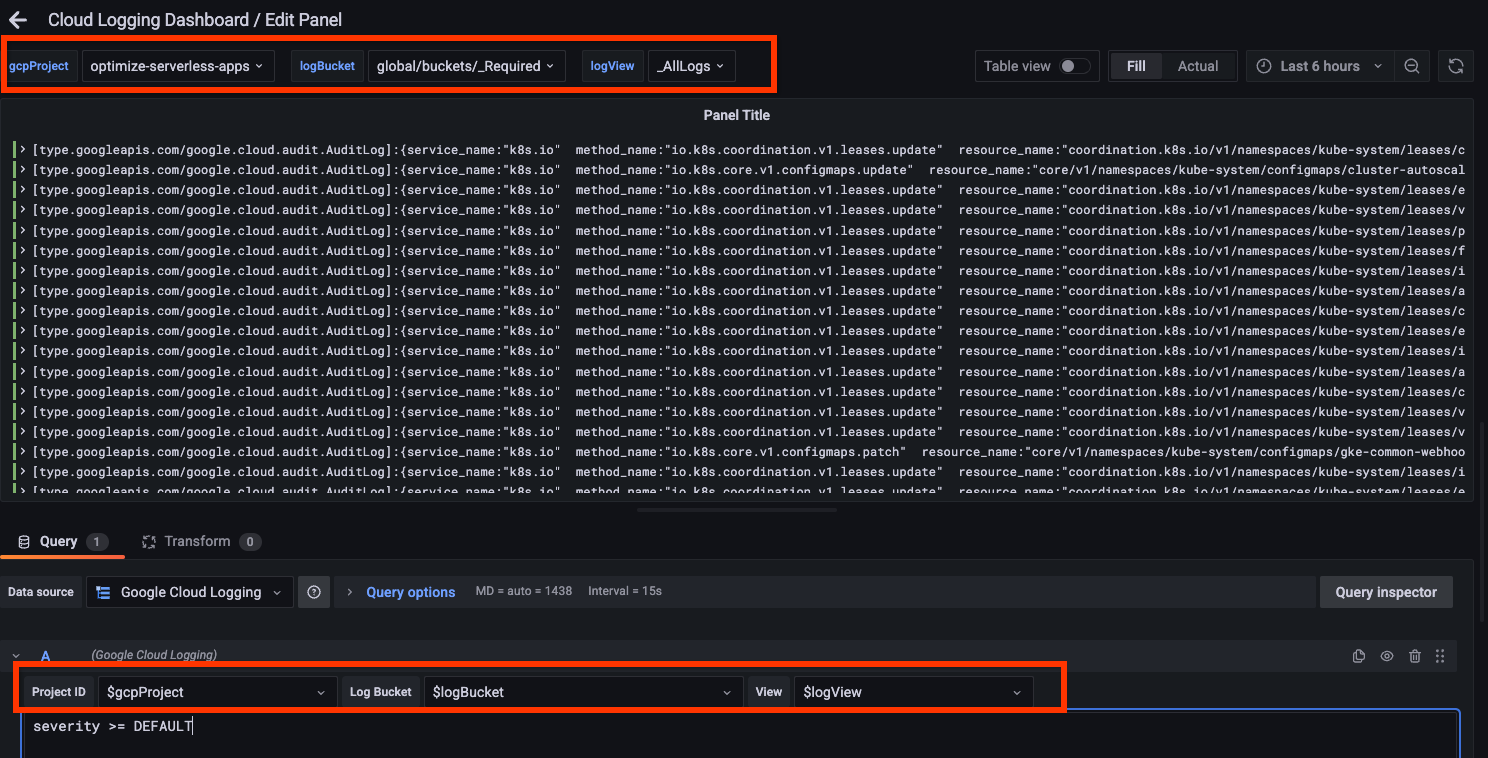
# universeDomain: googleapis.comThe plugin currently supports variables for logging scopes. For example, you can define a project variable and switch between projects. The following screenshot shows an example using project, bucket, and view.
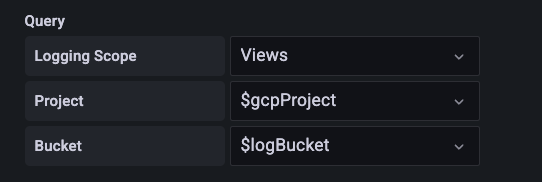
Below is an example of defining a variable for log views.
Grafana Alerting is not directly supported due to how Logging Query Language works on Google Cloud. If you need to create alerts based on logs, consider using Log-based metrics and a Cloud Monitoring data source.
Cloud Logging Logo (src/img/logo.svg) is from Google Cloud's Official icons and sample diagrams
As commented in the code, JWTForm and JWTConfigEditor are largely based on the Apache-2.0 licensed grafana-google-sdk-react.