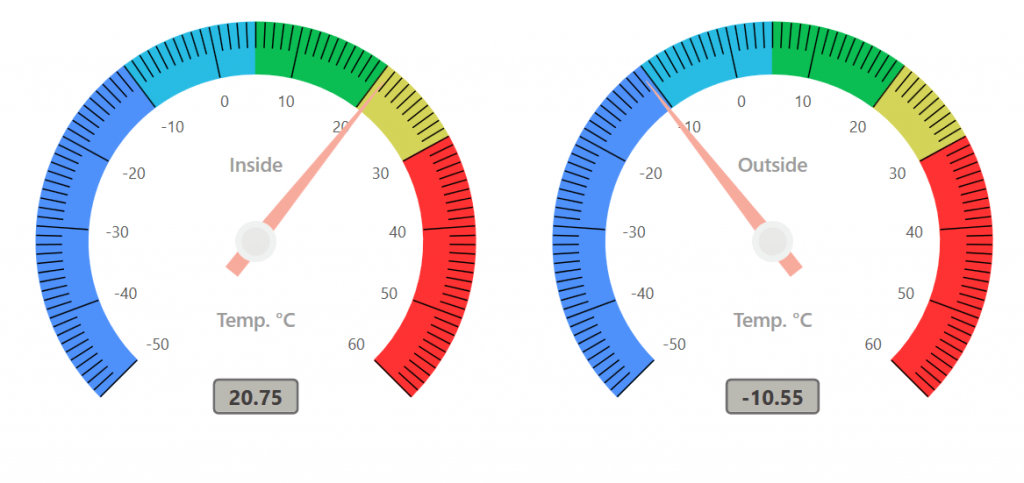
This sample demonstrates how to design a modern Temperature Monitor using the Syncfusion WPF Radial Gauge control. The application showcases how to visualize temperature values with customized scales, color-coded ranges, a needle pointer, and annotations.
- Configures a radial scale with customizable start and end values.
- Displays major and minor tick marks.
- Shows temperature labels across the gauge.
- Uses custom positioning for labels and ticks to create a clean dashboard layout.
- Uses multiple colored ranges to represent different temperature zones.
- Provides visual feedback for cold, moderate, warm, and hot temperature levels.
- Demonstrates range customization using start and end values along with offset settings.
- Displays the current temperature using a customizable needle pointer.
- Includes knob and tail styling options.
- Shows how to control pointer appearance and length.
- Displays the current temperature value within the gauge.
- Adds supplementary information such as temperature units and labels.
- Demonstrates annotation positioning using offset and angle properties.
- Arranges gauge elements using custom positioning.
- Maintains a consistent appearance across different window sizes.
Simple Steps to Design a Temperature Monitor Using WPF Radial Gauge