I use my Supernote for capturing hand written notes and reading documents.
But, I already use Obsidian for organizing and capturing all of my digital notes.
This plugin enables me (and now you!) to import handwritten notes into Obsidian and view them on a desktop, phone or tablet.
This plugin has seven main features:
-
📝 View Supernote
*.notefiles in your Obsidian Vault. You can link to these notes from your Markdown notes too[My Note](example.note). -
🔗 Embed a note inline in another note with
![[example.note]](scrollable, with page nav), or just one page with![[example.note#page=2]]. -
➡️ Export Supernote
*.notefiles as PNGs and/or markdown files and attach them to your Vault. -
🧠 Attach all of today's modified Supernote notes and text to the current Obsidian note with the "Import notes edited today" command (great when paired with daily notes)
-
📺 Copy an image from a Supernote via screen mirroring into your current note with the "Insert Supernote mirror image" command (demo video)
-
⬇️ Download & Upload files directly from your device via the Supernote Browse & Access feature. (demo video). Or sync all your Supernote files to your vault with the sync command.
-
✏️ Extensible OCR: (beta) build a companion plugin to customize OCR pages during conversion to markdown. See
ocr-plugins.md.
Video Demo
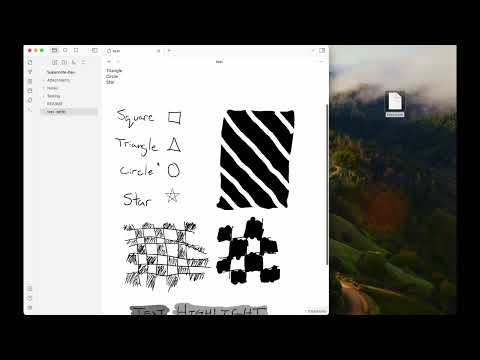
This plugin is available via the Obsidian Community Plugin Store. Click the previous link or search for "Supernote (Unofficial)".
To test Beta builds of this plugin follow these steps:
- Install the BRAT plugin via Community Plugin Search
- Read the docs
- Add
https://github.com/philips/supernote-obsidian-plugin
- Copy over
main.js,manifest.jsonto your vaultVaultFolder/.obsidian/plugins/obsidian-plugin-supernote/from https://github.com/philips/supernote-obsidian-plugin/releases
There are a handful of known issues. Please check the issue list. If you don't see a matching issue please create a new issue?
Thank you to Tiemen Schuijbroek for developing the initial supernote Typescript library I forked.
Q Why isn't there a table of contents in the generated Markdown file?
A Because the Obsidian Outline sidebar accomplishes this same feature.
- Obsidian and Supernote by Organizing for Change
- E-Ink notes in Obsidian / Notion? by Brandon Boswell
- Academic HANDWRITTEN notes in OBSIDIAN ft. Supernote by pixel leaves
I personally don't accept funding or donations for this project. However, if you feel inclined, consider donating to the Signal Foundation or Internet Security Research Group (ISRG). Open an issue or send me an email to let me know about your donation. It will make my day.
- Building a custom AI/OCR companion plugin? See
ocr-plugins.mdfor theregisterPageTextProcessorhook and a working example. - Make sure your NodeJS is at least v16 (
node --version). - Clone this repo.
- Setup the deps
git submodule init && git submodule update
npm run build
npm install
npm ioryarnto install dependencies.npm run devto start compilation in watch mode.
Android Debugging
- Ensure
npm run devis running above - Create a vault called "SupernoteTest"
- Install the supernote plugin from the community store
- Run
npm run push-androidto push main.js to the device - Run "Reload App without Saving" on Obsidian command palette
Releasing
Pushing a tag is the only manual step; .github/workflows/release.yml
builds the plugin and publishes the GitHub release with main.js, manifest.json and
styles.css attached. The tag's format decides the release channel:
- A plain
X.Y.Ztag is a stable release. The tag must exactly match the version already committed inmanifest.json— the workflow fails instead of publishing if it doesn't. - A tag with a semver pre-release suffix, e.g.
X.Y.Z-beta.1, is a beta release, published as a GitHub pre-release.
manifest.json committed to the repo must only ever hold the last stable version.
Obsidian's own update-checker (for regular Community Store users, not BRAT) reads
manifest.json straight from this repo to decide whether a newer version exists — it does
not go through GitHub's "latest release" API, so if a beta version ever landed in the
committed manifest.json, every installed user's client would offer it as an update. To
keep betas invisible to them, a beta tag is never preceded by a commit that bumps
manifest.json: the release workflow stamps the tag's version into manifest.json only
inside its own build, purely for the release asset, and that change is never merged back
into the repo. BRAT fetches manifest.json from that release
asset (not from the repo), so it still sees the right beta version.
To cut a stable release:
npm version <major|minor|patch>
git push --follow-tags
To cut a beta release, no commit is needed — just tag and push:
git tag <version>-beta.<n>
git push origin <version>-beta.<n>
(git tag -l '*-beta*' --sort=-v:refname shows the last beta tag, to pick the next <n>.)
To promote a beta that's already been tested to a full release, bump manifest.json to
that (or a newer) version with npm version as above and tag/push as usual — the same tag
can't be reused for two different releases, so promoting a beta means cutting a new stable
tag on top of it rather than editing the old pre-release in place.