
Gopherbook is a lightweight, single-binary, self-hosted comic reader and library manager written in Go.
It is designed for people who want full control over their digital comic collection (CBZ/CBT/CB7 files), including support for password-protected/encrypted archives, per-user libraries, tagging, automatic organization, and a clean modern reader.
Available as a server (browser-based) and a desktop (native window, no browser required) version.

| Version | Description | Runs on |
|---|---|---|
| Server | Browser-based, self-hosted, multi-user | Any Linux, Windows |
| Desktop (glibc) | Native desktop window, no browser needed | Ubuntu, Debian, Fedora, Arch, Void glibc, any glibc 2.28+ distro |
| Desktop (musl) | Native desktop window, no browser needed | Alpine, Void musl, any musl-based distro |
| Desktop (Windows) | Native desktop window, no browser needed | Windows 10+ 64-bit |
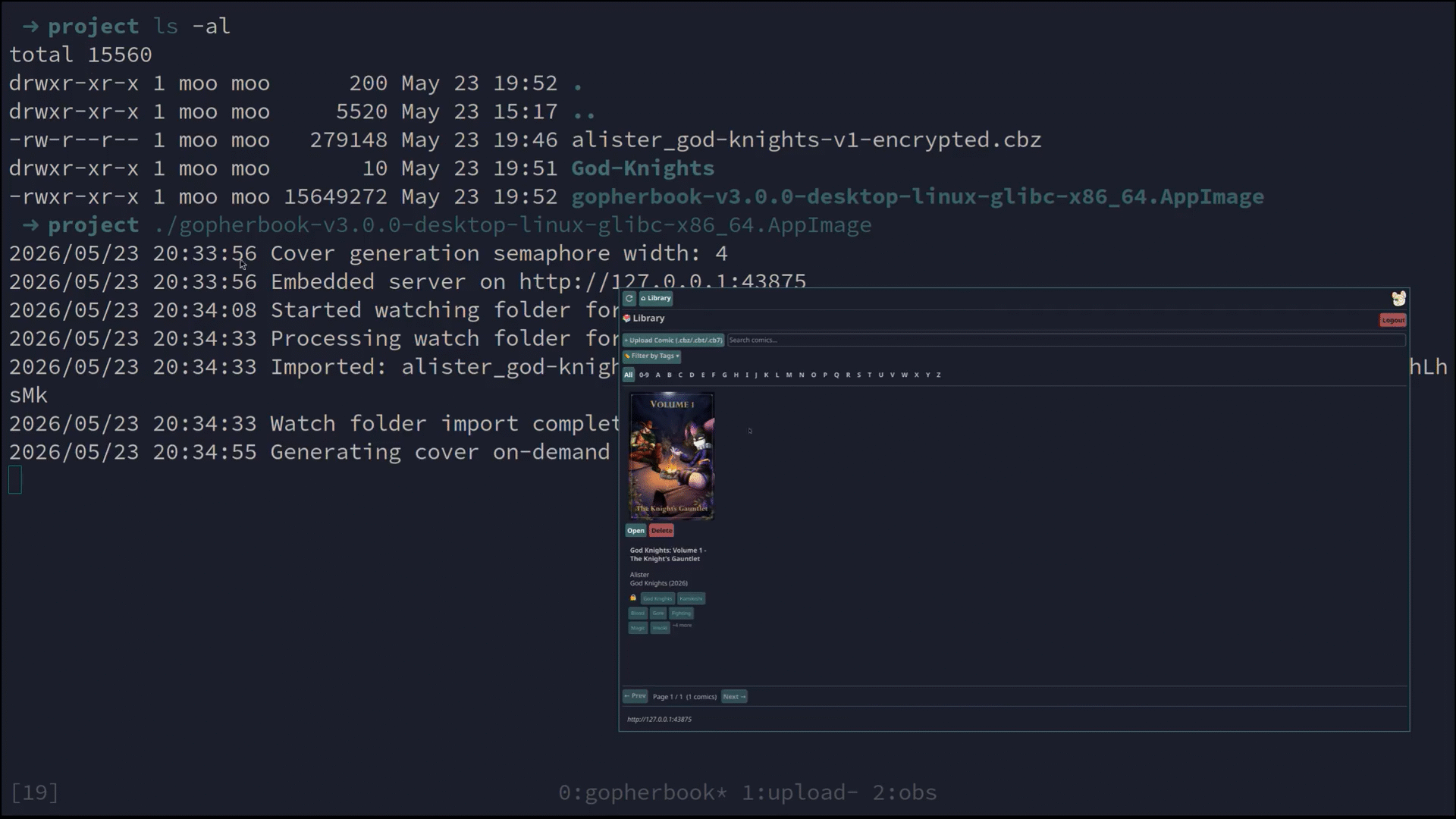
- Upload & read
.cbz(ZIP-based),.cbt(TAR-based), or.cb7(7-Zip-based) comics - CB7 / 7-Zip support: full read support for 7-Zip archives, both unencrypted and AES-256 encrypted (including header-encrypted
-mhe=onarchives)- LZMA (v1) and LZMA2 decompression supported
- CRC32 verification used for reliable password validation (works even with store-only/uncompressed archives where wrong passwords produce silent garbage)
- Watch folder support for bulk imports: drop CBZ/CBT/CB7 files into your watch folder and they're automatically imported
- Supports 8 Megapixel images at 512MB memory limits
- (increase in bash script for higher Megapixels or remove the limitation if you don't care)
- Full support for password-protected/encrypted CBZ files (AES-256 via yeka/zip), CBT files (AES-256-CFB OpenSSL), and CB7 files (AES-256 via bodgit/sevenzip)
- Automatically tries all previously successful passwords when opening a new encrypted comic, no prompt if a known password works
- Persists discovered passwords securely (AES-encrypted on disk, key derived from your login password)
- Extracts ComicInfo.xml metadata (title, series, number, writer, inker, tags, story arc, etc.) from CBZ, CBT, and CB7 archives
- Automatic folder organization:
Library/Artist/StoryArc/Comic.cbz - Automatic artist tag: when metadata is extracted, the artist is automatically added as a tag so your tag list always reflects your library's artists without any manual effort
- Manual reorganization via UI if needed
- Powerful tagging system with custom colors and counts
- Filter comics by any combination of tags, alphabetically, or by search
- Responsive grid view with cached JPEG covers
- Paginated library browsing for large collections
- Single unified bbolt database: replaces scattered JSON files for better performance and reliability
- Easy comic deletion: remove comics from your library with a right-click or trash icon
- Shareable links: generate and share direct links to individual comics, with optional share-level password protection
- Collections: organize comics into custom collections with generated or uploaded covers
- No external dependencies: everything self-contained in a single binary
- Full-screen web reader with:
- Page pre-loading
- Zoom / pan
- Fit-to-width/height/page
- Keyboard navigation (←→, A/D, +/-, Esc)
- Multi-user support:
- Each user has their own completely isolated library and password vault
- First registered user becomes admin
- Admin can disable new registrations
- Admin can delete any comic
- Native window — no browser required, launches directly as a desktop app
- Available as an AppImage for easy distribution on Linux

- Go 1.26.0+ (only needed to build from source)
- Or download a pre-built binary or AppImage from Releases
git clone https://codeberg.org/riomoo/gopherbook.git
cd gopherbook
go build -o gopherbook ./app/gopherbook
./gopherbook
Then open http://localhost:8080 in your browser.
git clone https://codeberg.org/riomoo/gopherbook.git
cd gopherbook
go build -tags desktop -o gopherbook-desktop ./app/gopherbook
./gopherbook-desktopDownload the appropriate release from the Releases page:
| File | Description |
|---|---|
gopherbook-*-linux-x86_64.tar.gz |
Server, Linux |
gopherbook-*-windows-amd64.zip |
Server, Windows |
gopherbook-*-desktop-linux-glibc-x86_64.tar.gz |
Desktop, Linux glibc (Ubuntu/Fedora/Arch/etc) |
gopherbook-*-desktop-linux-musl-x86_64.tar.gz |
Desktop, Linux musl (Alpine/Void musl/etc) |
gopherbook-*-desktop-windows-amd64.zip |
Desktop, Windows |
gopherbook-*-linux-x86_64.AppImage |
Server, Linux AppImage |
gopherbook-*-desktop-linux-glibc-x86_64.AppImage |
Desktop, Linux glibc AppImage |
# Build the container image
podman build -f Containerfile.build -t gopherbook-builder .

# Extract all 5 binaries
mkdir -p binaries
podman run --rm -v ./binaries:/out gopherbook-builder \
  sh -c "cp bin/* /out/"
Then package for release:
./package-release.sh v3.0.0git clone https://codeberg.org/riomoo/gopherbook.git
cd gopherbook
./scripts-bash/run-gb-container/run-podman.shor
git clone https://codeberg.org/riomoo/gopherbook.git
cd gopherbook
./scripts-bash/run-gb-container/run-docker.sh
Then open http://localhost:12010 in your browser.
- On first run there are no users → registration is open
- Create the first account → this user automatically becomes admin
- Log in → start uploading CBZ/CBT/CB7 files
./library/username/                <- your comics (organized or Unorganized/)
./cache/covers/username/           <- generated cover thumbnails
./watch/username/                  <- watch folder for bulk imports (auto-scanned)
./etc/gopherbook.db                <- unified bbolt database (users, comics, tags, passwords, collections)
For AppImage installs, data is stored in:
~/.config/gopherbook/library/        <- your comics
~/.config/gopherbook/covers/         <- generated cover thumbnails
~/.config/gopherbook/watch/          <- watch folder
~/.config/gopherbook/etc/            <- database
~/.config/gopherbook/gopherbook.conf <- config file (edit to change port or paths)
Can be used to configure storage locations and server settings:
GOPHERBOOK_LIBRARY=$HOME/.config/gopherbook/library
GOPHERBOOK_CACHE=$HOME/.config/gopherbook/covers
GOPHERBOOK_ETC=$HOME/.config/gopherbook/etc
GOPHERBOOK_WATCH=$HOME/.config/gopherbook/watch
GBKPORT=8112                                           # Set the port the server listens on (default: 8080)
| Format | Extension | Encryption | Metadata (ComicInfo.xml) | Notes |
|---|---|---|---|---|
| CBZ | .cbz |
AES-256 (yeka/zip) | ✅ | Standard ZIP-based format |
| CBT | .cbt |
AES-256-CFB (OpenSSL-compatible) | ✅ | TAR-based format |
| CB7 | .cb7 |
AES-256 (7-Zip) | ✅ | 7-Zip-based; supports LZMA, LZMA2, header encryption |
Gopherbook includes an automatic watch folder system that makes bulk importing comics effortless:
- Per-user watch folders: Each user gets their own watch folder at
./watch/[username]/ - Automatic scanning: The system checks for new CBZ/CBT/CB7 files every 10 seconds
- Smart debouncing: Waits 5 seconds after detecting files to ensure they're fully copied
- File validation: Checks that files aren't still being written before importing
- Duplicate handling: Automatically renames files if they already exist (adds _1, _2, etc.)
- Zero configuration: Just drop CBZ/CBT/CB7 files into your watch folder under your user name and they appear in your library
- After logging in, your personal watch folder is at
./watch/[yourusername]/ - Copy or move CBZ/CBT/CB7 files into this folder using any method:
- Direct file copy/paste
- SCP/SFTP upload
- Network share mount
- Automated scripts
- Within ~15 seconds, files are automatically imported to your library
- Files are moved (not copied) to preserve disk space
- Check the API endpoint
/api/watch-folderto see pending files
Example workflow:
# Bulk copy comics to your watch folder
cp ~/Downloads/*.cbz ./watch/myusername/
cp ~/Downloads/*.cbt ./watch/myusername/
cp ~/Downloads/*.cb7 ./watch/myusername/

# Wait ~15 seconds, then check your library in the web UI
# All comics will be imported and organized automatically- When you upload or scan an encrypted CBZ/CBT/CB7 that has no known password yet, the server marks it as Encrypted = true.
- When you open it, Gopherbook first tries all previously successful passwords automatically.
- If none work, a password prompt appears.
- If the password is correct, Gopherbook:
- Stores the password (encrypted with a key derived from your login password)
- Extracts ComicInfo.xml metadata
- Auto-organizes the file into Artist/StoryArc folders
- Updates tags and cover cache
- From then on the comic opens instantly, and that password is automatically tried on every future encrypted comic you upload (so whole collections that share one password "just work").
CB7 archives support two modes of encryption:
- Content encryption (default
-pflag): file headers are readable but content is encrypted. Wrong passwords produce a decompression error. - Header encryption (
-mhe=on): the entire archive including the file list is encrypted. Gopherbook detects this automatically and prompts for a password before listing pages.
In both cases, Gopherbook validates passwords by extracting a file and verifying its CRC32 checksum against the value stored in the archive header, which correctly handles store-only (uncompressed) encrypted archives where wrong passwords otherwise produce silent garbage output.
- Passwords are stored encrypted on disk using AES-256-CFB with a key derived from your login password via SHA-256.
- Session cookie is HttpOnly, expires after 24 h.
- No external dependencies that phone home.
- Still: treat this as a personal/private server – do not expose it publicly without HTTPS/reverse-proxy auth.
upstream gopherbook {
        server 127.0.0.1:8080;
        #server 127.0.0.1:12010; #For Podman instead
        server [::1]:8080;
        #server [::1]:12010; #For Podman instead
}
server {
        listen 80;
        listen [::1]:80;
        server_name gopherbook.example.com;
        location / {
                proxy_pass http://gopherbook;
                proxy_set_header Host $host;
                proxy_set_header X-Real-IP $remote_addr;
                proxy_set_header X-Forwarded-For $proxy_add_x_forwarded_for;
                proxy_set_header X-Forwarded-Proto $scheme;
                # 1. Allow very large uploads (e.g. 500 MB – adjust as needed)
                client_max_body_size 500M;          # 0 = unlimited, but never do that on a public server

                # 2. Give the upload enough time (important for slow connections)
                client_body_timeout 5m;             # time to read the entire request body (default 60s)
                proxy_read_timeout 5m;              # if you're proxying to your Go app
                proxy_send_timeout 5m;

                # 3. Increase buffer sizes so Nginx doesn't spill everything to disk
                client_body_buffer_size 512k;       # default 8k/16k – too small for big uploads
                proxy_buffers 8 512k;
                proxy_buffer_size 256k;

                # 4. Recommended: put uploads in a temporary directory with plenty of space
                client_body_temp_path /var/lib/nginx/body 1 2;   # make sure this directory exists and is writable by nginx
        }
}
Pull requests are welcome! Especially:
- Better mobile reader experience
- Bulk tag editing
- Search box
Please open an issue first for bigger changes.
- Check the Wiki!
- GitHub: https://github.com/riomoo/gopherbook/wiki/Meet-Vinny
- GitGud: https://gitgud.io/riomoo/gopherbook/-/wikis/Meet-Vinny
- JesterDesigns: https://git.jester-designs.com/riomoo/gopherbook/wiki/Meet-Vinny
- yeka/zip – password-protected ZIP support in pure Go
- bodgit/sevenzip – 7-Zip archive support in pure Go
- kulaginds/lzma – LZMA (v1) decompressor for 7-Zip archives
- fyne.io/fyne – desktop GUI framework for the native desktop version
- The ComicRack ComicInfo.xml standard
- Everyone who hoards comics ❤️
Enjoy your library!
– Happy reading with Gopherbook