



Read the traffic your site already sends to Vercel Web Analytics or Plausible, and report it inside the Umbraco backoffice. Editors get the site-wide numbers and the numbers for the page they are editing, without leaving Umbraco.
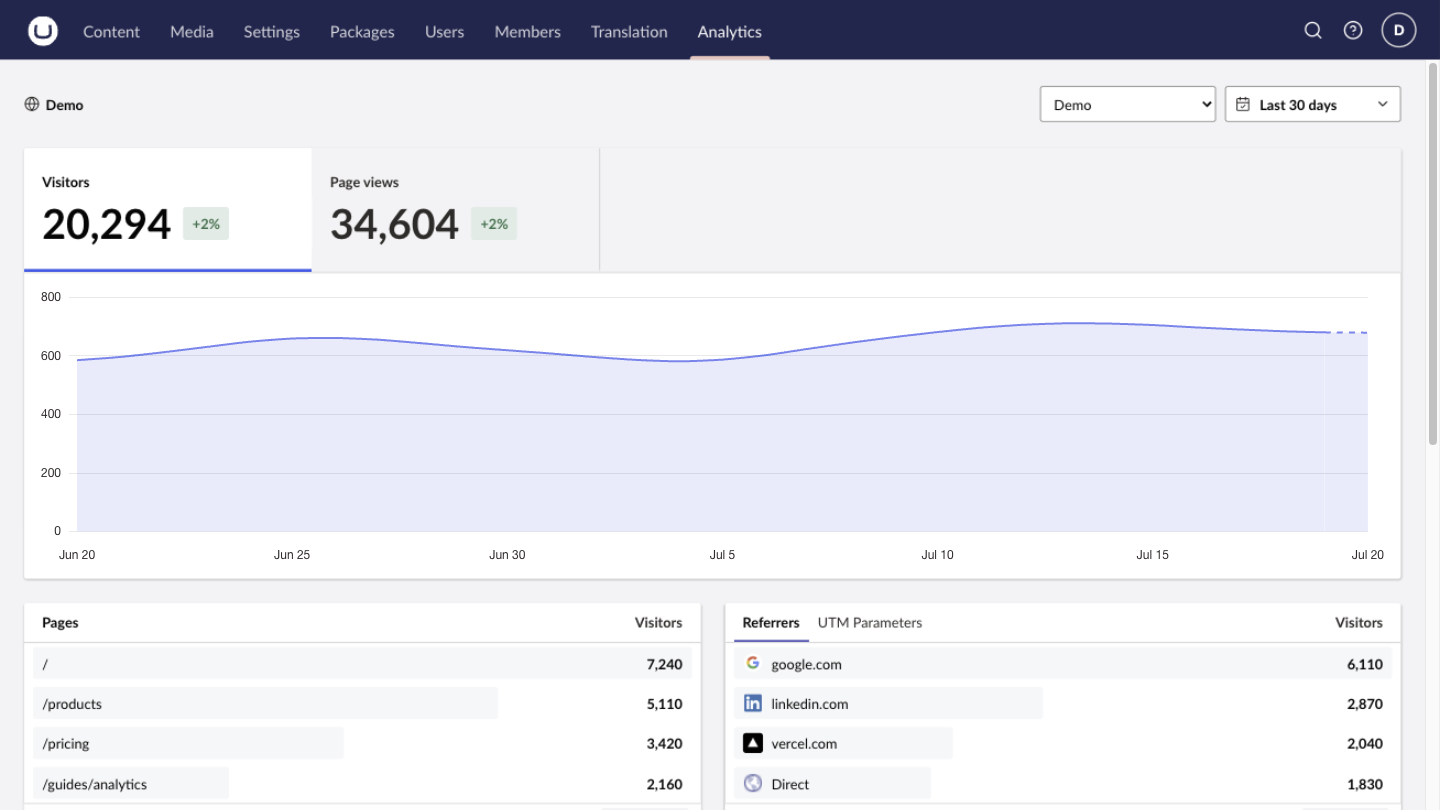
Web Analytics is read-only. It does not install, replace, or configure tracking on your public website.
Web Analytics supports Umbraco CMS 17.1 through 18.x. Add it to the Umbraco web project:
dotnet add package TheBuilder.WebAnalyticsYour public site must already collect analytics with Vercel or Plausible. This package reads that data and adds no tracking of its own.
The package registers its services and backoffice extensions automatically. Then:
- Configure a provider credential in server-side secret configuration (see below).
- Restart the Umbraco application so it reads the credential.
- As an administrator, open Settings → Web Analytics, add a connection, and select Test connection.
- Open the Analytics section to verify that reports load.
To let non-admin editors see reporting, grant the Analytics section to their user group; the automatic administrator grant runs only once.
| Provider | Identifier | Credential |
|---|---|---|
| Vercel Web Analytics | Project ID (prj_...) and optional team |
Scoped access token |
| Plausible | Site ID, normally the registered domain | Stats API key |
Plausible Cloud's Stats API requires a Business plan. Self-hosted Plausible is supported when its instance exposes the v2 Stats API query endpoint.
Provider credentials are always read from server-side configuration. They are never stored in Umbraco and never sent to the browser. Keep them out of appsettings.json and source control: use environment variables, .NET user secrets, or your hosting platform's secret store. Restart every application instance after adding or rotating a credential.
Configuration keys use the standard .NET double-underscore (__) delimiter in environment variables, or : in user secrets and JSON.
- Create a Vercel access token scoped to the account or team that owns the project.
- Set it as
WebAnalytics__Providers__Vercel__AccessToken. - Note the project ID (
prj_...), plus the team ID (team_...) or slug for a team-owned project. You enter those in Settings.
dotnet user-secrets set "WebAnalytics:Providers:Vercel:AccessToken" "your_token" --project path/to/Your.Umbraco.Web.csproj- Create a Plausible Stats API key for the site you want to connect.
- Set it as
WebAnalytics__Providers__Plausible__AccessToken. - Note the Site ID, normally the registered domain. You enter it in Settings.
- On a self-hosted instance, set
WebAnalytics__Providers__Plausible__BaseUrlto its public base URL, which must expose/api/v2/query. Cloud users keep the defaulthttps://plausible.io/.
dotnet user-secrets set "WebAnalytics:Providers:Plausible:AccessToken" "your_stats_api_key" --project path/to/Your.Umbraco.Web.csproj
dotnet user-secrets set "WebAnalytics:Providers:Plausible:BaseUrl" "https://analytics.example.com/" --project path/to/Your.Umbraco.Web.csprojWhen one connection needs a different credential from the shared provider token, set an override keyed by that connection's GUID. The Settings screen shows the exact key. An override wins over the shared provider credential.
WebAnalytics__ConnectionAccessTokens__{connection-guid}
The Settings screen (Settings → Web Analytics) is the normal way to manage connections. Precedence works like this:
- At startup the package reads the
WebAnalyticssection from server configuration. - Until an administrator first saves Settings, those non-secret values are the active configuration.
- After the first save, non-secret connection settings are stored in Umbraco and become the source of truth.
- Provider credentials always remain in server-side configuration, regardless of saved settings.
Each application instance keeps its own in-memory report cache, so restart every instance after changing saved settings or credentials.
Besides the provider credentials above, the WebAnalytics section takes these options:
| Key | Default | Description |
|---|---|---|
Enabled |
true |
Enables the Analytics section and configured document workspace views. |
DefaultRangeDays |
30 |
Initial reporting range, in days. Valid values are 1 to 730. |
CacheDuration |
00:05:00 |
Per-instance in-memory cache duration. Valid from zero to one hour. |
Connections |
[] |
Provider connection definitions. The first becomes the initial default. |
EnableMockConnections |
false |
Deterministic development-only connection presets. Never enable in production. |
Connections are normally created through the Settings screen, but deployment automation can bootstrap them from configuration instead. The configuration reference documents every connection key and the full precedence rules.
The documentation site covers everything above in more depth, plus the reporting UI and per-provider capabilities:
- Quickstart: install, connect a provider, and verify the dashboard.
- Understanding your reports: what each metric, breakdown, and control means.
- Document analytics: show page-level reports on mapped documents.
- Configuration reference and troubleshooting.
Contributions are welcome. CONTRIBUTING.md covers the repository layout, local development setup, and how to open a pull request. docs/releasing.md covers NuGet publishing. GitHub Releases are the authoritative changelog and are mirrored in the documentation changelog.